Introduction
Testing allows users to ensure the core functionality of their story has not broken when making changes.
Save story runs
Save a story run to easily find testing data when making future updates to your story. We recommend saving a story run per branch in your workflow to capture all relevant paths an event could travel. Test or re-run your saved run in your story at any time, regardless of your set event retention
💡Note
Save a story run
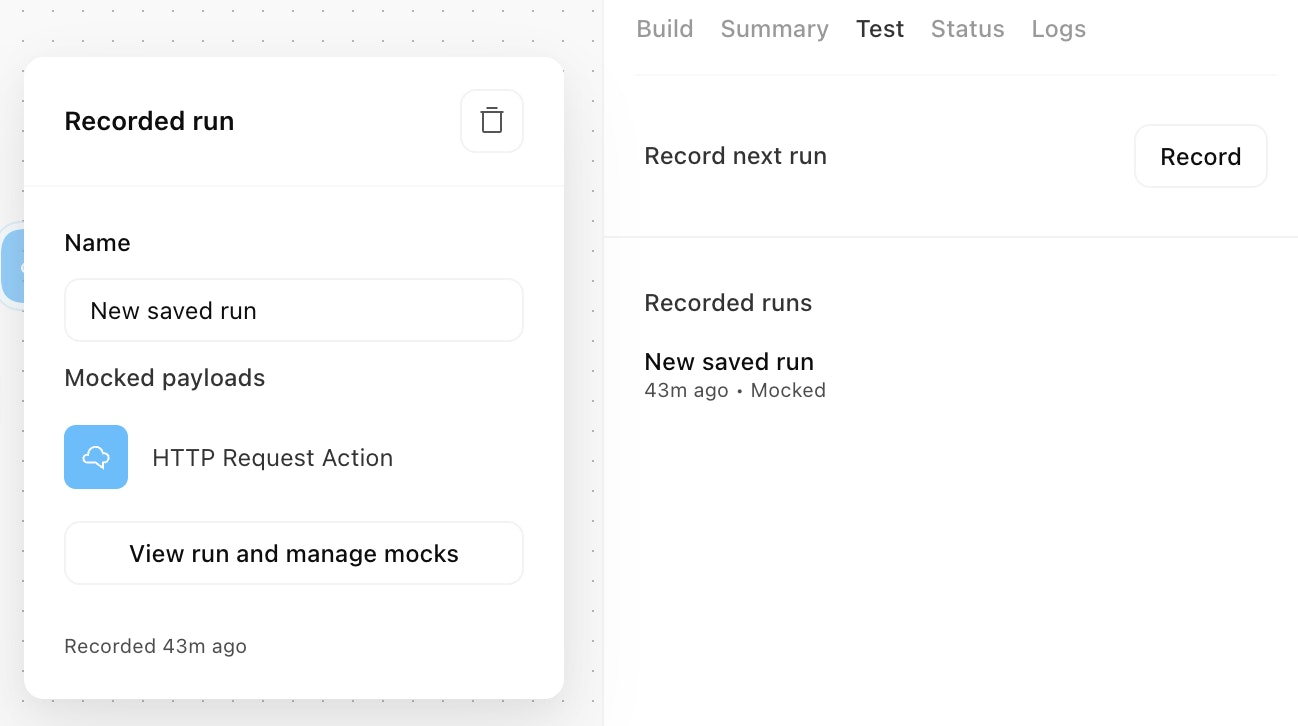
To save a story run, go to Test tab in the right hand side panel of your desired webhook action or receive email action, and select Record. Once set, the next input received by those actions and subsequent story run will be recorded and saved. Saved story run inputs are not restricted by the event retention period and will be available until you delete the saved run. There is a limit of 20 saved story run inputs per action.
Once a run is saved, you can view, rename, or delete the story run. Navigate to your action's right hand side panel, go to Test tab, hover over your saved run, select Edit saved story run to open a popup from where you can rename or delete your saved run.
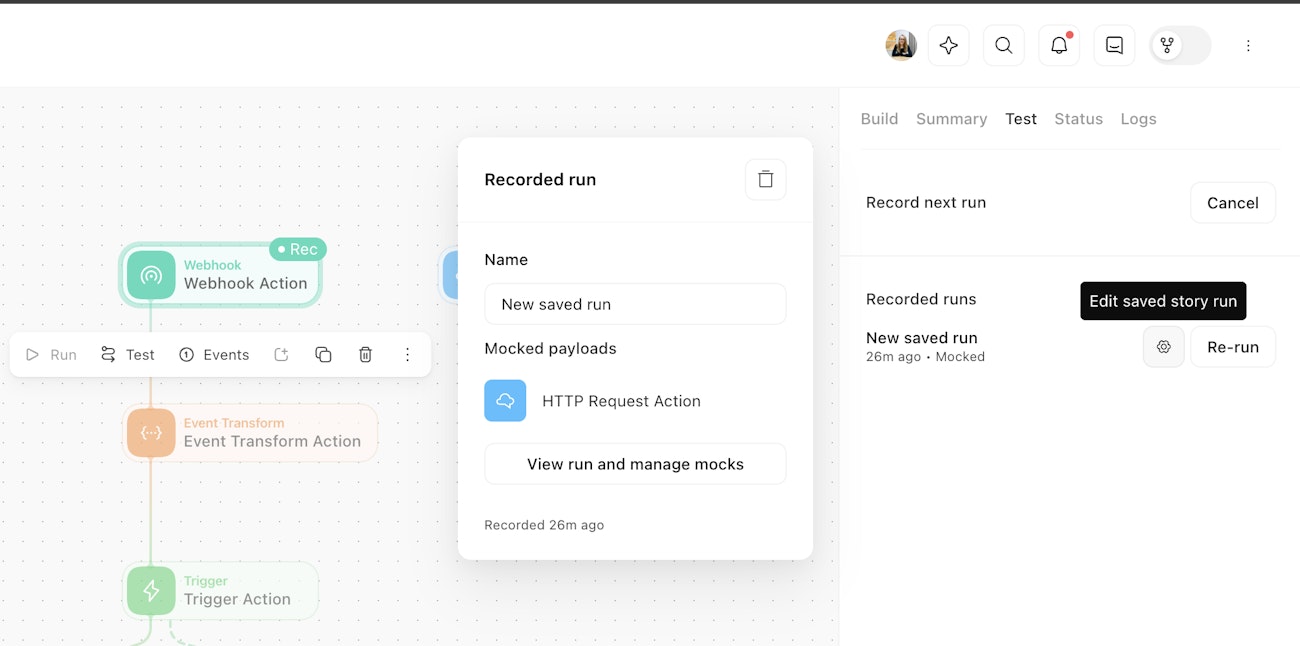
In order to see the full run, from the popup select View run and manage mocks.
Run a saved story run
When you re-run a saved story run, the input received by the first action in your initial story run will be re-sent to that first action again. To re-run a saved story run, navigate to your action's Test tab, hover over your saved run and select Edit saved story run to open a popup from where you can re-run that recorded run.
In a story with change control enabled, only saved live runs are available in live mode. In drafts, builders can access live story runs and create saved draft runs. However, saved draft runs cannot be pushed to live. They must be re-recorded in the live story.
Running a saved story run with mock payloads
When re-running a saved story run, you may not want or need all the actions in the story to run again. Mock payloads allow for a story to run normally but use the same output payload from the event in the saved story run in place of an actual action run's event.
Marking a payload to be mocked
Go to Test tab, hover over your saved story run, select Edit saved story run, then on the popup select to View run and manage mocks. A modal with all the actions and payloads will show. That saved story run will feature a switch with the label Use as mock payload for each action's payload in a story run. Turning on this switch will result in that particular payload being used as the event for that action when that saved story run is re-run. This will prevent actions such as HTTP Request Actions or Send Email Actions from interacting with the outside world but will allow the story to continue running.
All actions marked as mocked will be displayed in the story run's popup for visibility.
Testing
To test story changes, navigate to your action's Test tab, select your recorded run and click Run test. This will re-run the story with saved inputs in a sandbox environment, request payloads are built but the requests are not sent if the action is mocked.
❗️Important
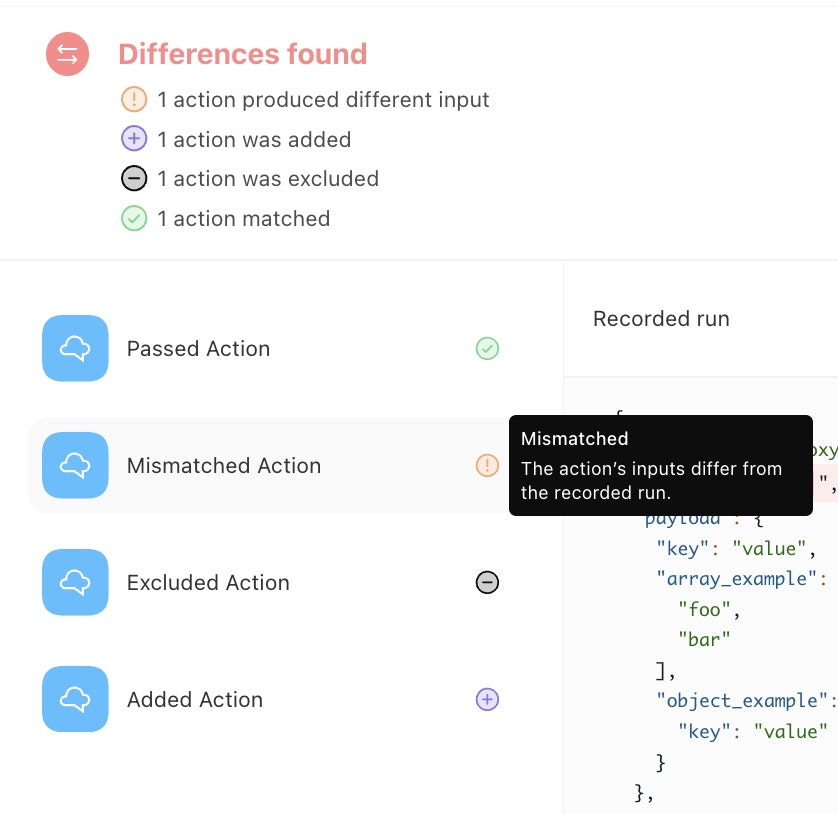
The test results will appear in the Tests section, here you will see badges providing a quick overview of differences between the saved and test run.
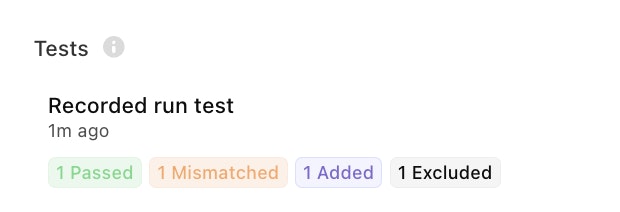
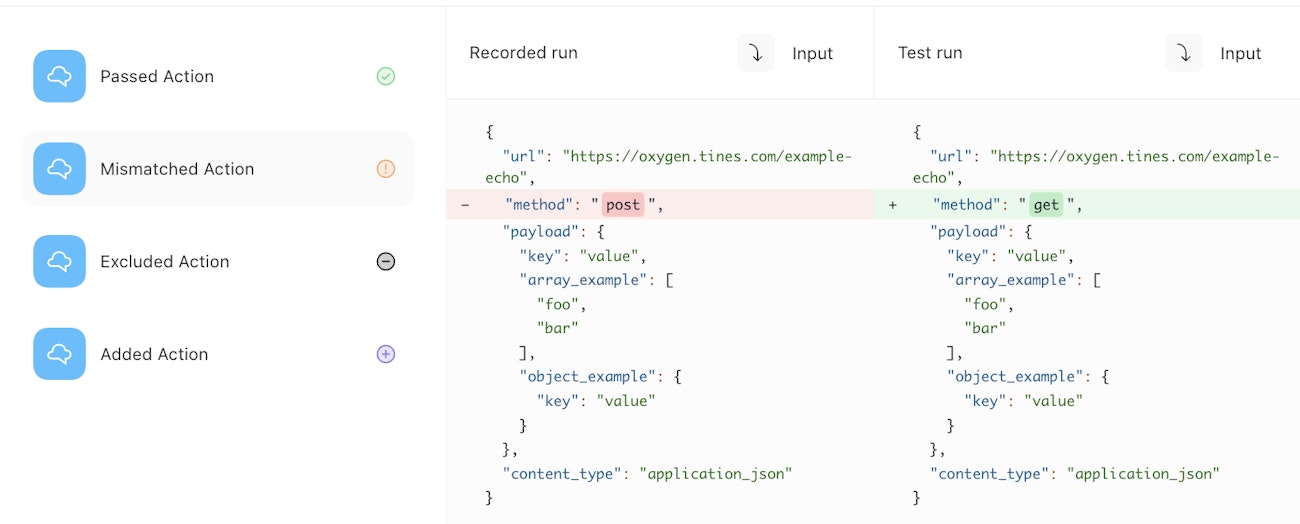
Clicking on the test run will bring you to the test results page. In this page, you can see detailed differences in the requests sent between the recorded run and the test run.
Only actions that send data outside of the story (such as an HTTP request, record creation action, or case creation action) are compared to ensure core functionality is not removed from a story. Triggers and event transform actions are not included because changes to those actions will not clearly show the impact of a story's functionality.
If a test did not pass, it is possible to see at a glance what actions differ in the recorded run and test based on the icons seen in the action panel and a summary in the top left corner. Clicking into these rows allows you to see the exact differences, so you can investigate what has changed between the runs and verify if the changes are expected or the story needs to be edited further.
Some of the actions contain fields like timestamps, which could be an expected difference but still show as a mismatch.
There could also be a scenario when an action is excluded when you did not expect it to be, in this case ensure that your story does not contain any deduplication that would not allow you to repeat the run with the exact same information.